PLEASE NOTE: Google Developer Console might look different from your end as Google makes changes to its interface frequently, but functionality is still the same and remains intact.

If you see a "Redirect URI mismatch", the URI in Amelia and the URI in Google Developers Console are not the same.
Please go to Amelia → Features & Integrations → Set up under Google Calendar & Google Meet → General and make sure that the Redirect URI you see in there is your website's URL, ending with wp-admin/admin.php?page=wpamelia-employees. For example, if your website is "yourwebsite.com", the redirect URI needs to be this:
https://yourwebsite.com/wp-admin/admin.php?page=wpamelia-employees
Is your website on HTTP or HTTPS? Please note that Google doesn't allow HTTP, so if it's HTTP, you'll need to install an SSL certificate and move your site to HTTPS before you can continue.
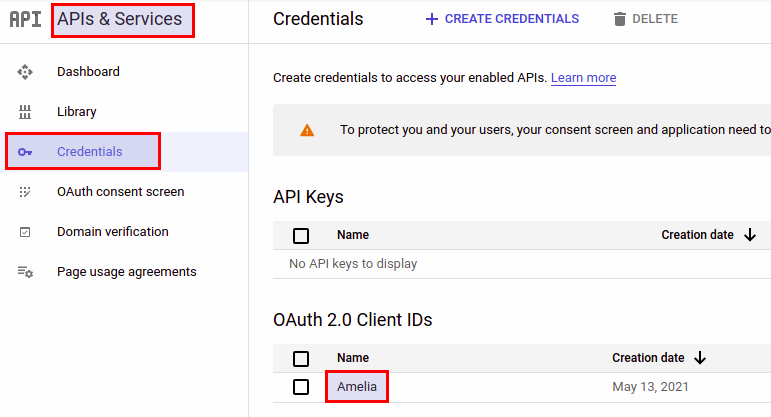
After verifying that, please go to Google Developers Console, and in "APIs & Services" go to "Credentials". Under "OAuth 2.0 Client IDs," click on the name of your app:
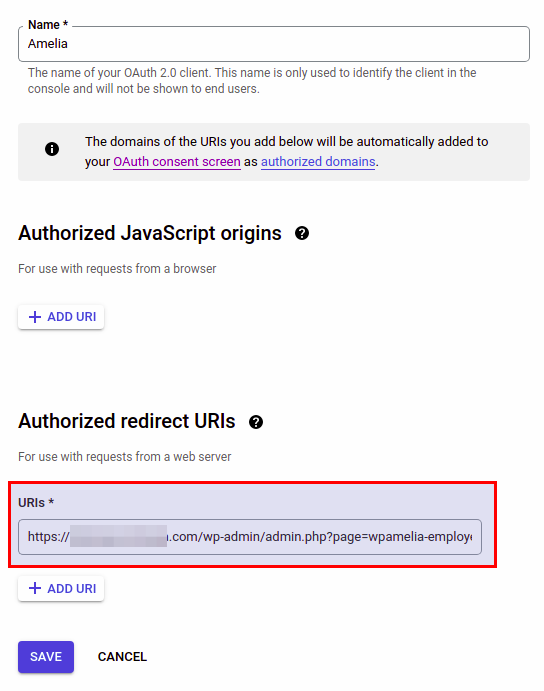
In there, check the "Authorized redirect URIs" on the bottom of the page. Make sure that the URL has to be the same as it is in Amelia/Settings/Integrations/Google Calendar.
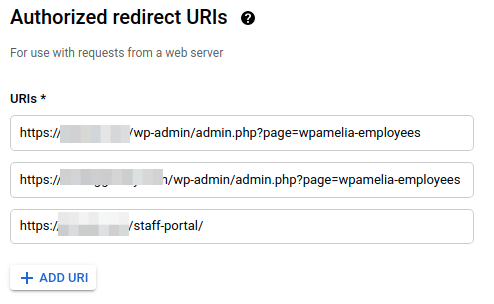
If you use the front-end Employee panel and want to allow employees to connect their Google calendars from there, you also need to add the full URL of the page where you have the front-end Employee panel, as well. Please make sure to include the whole URL, with the closing ” / ” included, as shown in the screenshot below (“staff-portal” redirect URI).